How to Fix MTK USB Driver Install Error on Windows 10/11 [100% Working]

Security Status: SAFE
Scanned by 65+ antivirus engines • No threats detected
Overview of How to Fix MTK USB Driver Install Error on Windows 10/11 [100% Working]
If you are trying to perform an MTK USB driver install on a modern PC, you have likely encountered the frustrating “Digital Signature” block or the dreaded SP Flash tool driver error. These issues occur because Windows 10 and 11 enforce strict security protocols that prevent unsigned drivers from communicating with your Mediatek device. Our comprehensive guide provides the definitive Mediatek VCOM driver fix to ensure your computer recognizes your smartphone in Preloader, Brom, or DA mode without any connectivity drops.
Properly configuring the MTK Preloader driver is the backbone of any successful firmware flashing, unlocking, or IMEI repair process. Without this fix, your device will likely connect and disconnect every few seconds, causing tools like SP Flash Tool or Miracle Box to fail mid-process. By following this method, you will bypass Windows Driver Signature Enforcement and establish a stable bridge between your hardware and software, effectively turning a “dead” device into a functional one.
Core Benefits
- Universal Compatibility: Works across all Mediatek-powered smartphones (Xiaomi, Oppo, Vivo, Realme, Infinix).
- Stable Connection: Eliminates the “USB device not recognized” error during critical flashing procedures.
- SP Flash Tool Optimization: Specifically designed to resolve PMT changed for the ROM or BROM Communication errors.
- Windows 11 Ready: Updated steps to navigate the latest security features in Windows 11 23H2 and beyond.
📥 Installation Guide
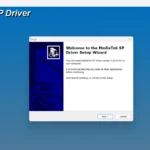
- Step 1: Download the MTK USB Driver package and extract it to your desktop.
- Step 2: Press Shift + Restart on your Windows PC. Navigate to Troubleshoot > Advanced Options > Startup Settings > Restart. Press F7 to “Disable Driver Signature Enforcement.”
- Step 3: Once the PC reboots, open Device Manager. Right-click your PC name and select “Add Legacy Hardware.”
- Step 4: Browse to the extracted folder and select the
.inffile corresponding to your architecture (x64 or x86). - Step 5: Complete the wizard. You should now see the MediaTek DA USB VCOM Port under the “Ports (COM & LPT)” section.
- Step 6: Restart your computer normally to re-enable security features.
✨ Key Features
- Auto-Installer Integration: Includes an automated script to register the Mediatek VCOM driver fix files into the Windows registry.
- Legacy Support: Compatible with older MT6572/MT6580 chipsets up to the latest Dimensity series.
- Multiple Port Support: Correctly identifies MTK USB Port, VCOM Port, and Preloader Port.
- Driver Signature Bypass: Includes instructions to temporarily disable DSE (Driver Signature Enforcement) for a seamless install.
Minimum Requirements
🖥️ Requirements
| Operating System | Windows 7, 8, 8.1, 10, 11 (32-bit & 64-bit) |
| Processor | Intel Pentium 4 or higher; AMD Athlon 64 or higher |
| RAM | Minimum 512 MB (1 GB recommended) |
| Storage | 50 MB of free disk space |
| Connectivity | High-quality Micro-USB or Type-C Data Cable |
📜 What’s New
- v2.0.1: Full support for Windows 11 Insider and Stable builds.
- Fix: Resolved the “Code 10” error where the device failed to start in Device Manager.
- Updated: Included latest binaries for MTK Preloader driver for better Dimensity chipset recognition.
Rate & Review This Software
User Reviews
No reviews yet. Be the first to review!
About the Author / Developer
📱 Related Apps You May Like
Download Mirror Options
Choose your preferred download server:
How to Install
- Click the Download button above
- Wait for download to complete
- Run the installer file (.exe)
- Follow the installation wizard
- Launch the application
How to Extract (ZIP/RAR)
- Download and install WinRAR or 7-Zip
- Multi-part archives: Download all parts (.part1.rar, .part2.rar) into the same folder
- Right-click on any one part (usually .part1.rar)
- Select "Extract Here" or "Extract to folder"
- Tool will auto-extract all parts